Alexa Deal Alerts: Set Up Voice Notifications to Save
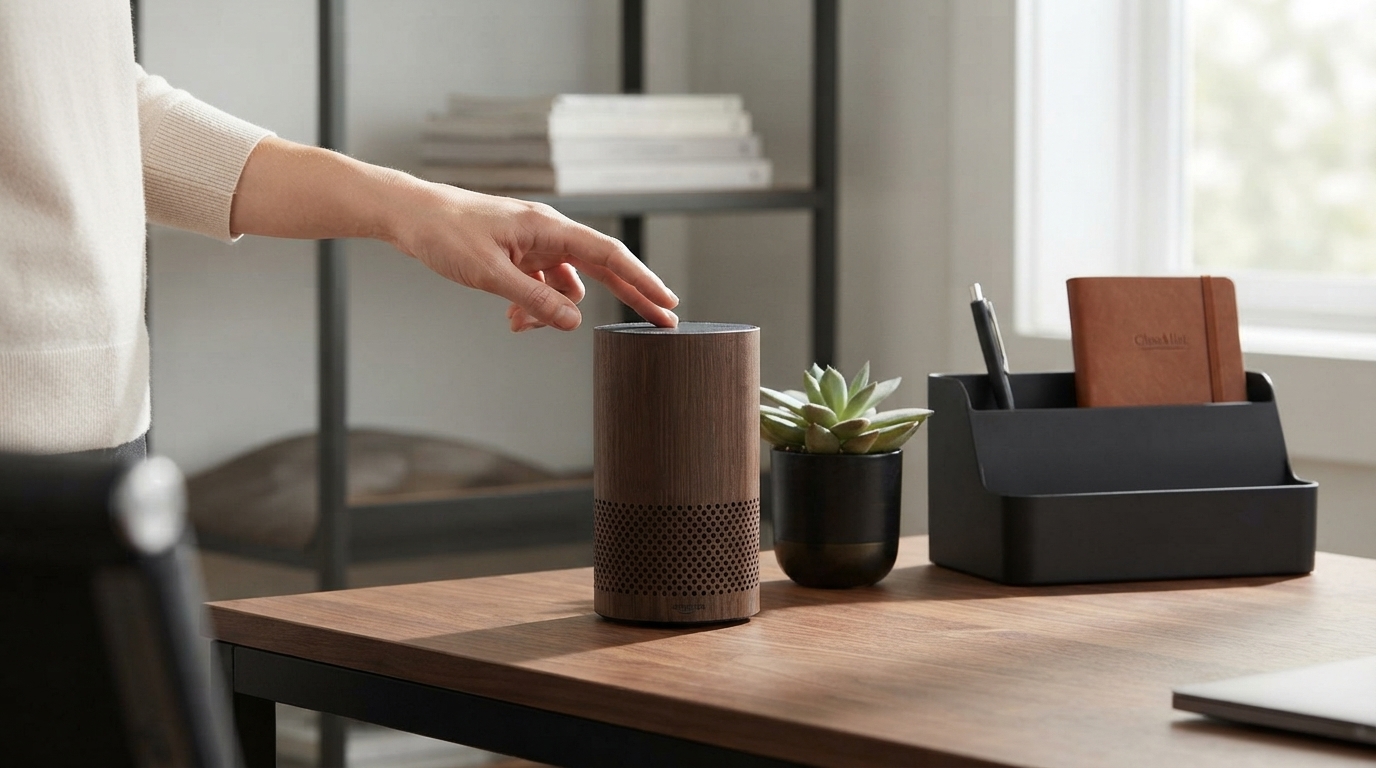
Alexa Deal Alerts Checklist: Set Up Voice Deal Notifications and Save on Amazon
Deal-hunting gets easier when notifications come to you. A few smart Alexa settings—plus a consistent “deal watch” routine—can surface price drops, limited-time offers, and reorder opportunities without constantly opening the Amazon app. Use the checklist below as a quick-start setup you can repeat before Prime Day, Black Friday, or whenever you want to tighten up your everyday shopping habits.
What the Alexa Deal Alerts Checklist helps you do
- Turn on the right Alexa and Amazon Shopping notifications for deals and order updates
- Create a simple routine for tracking items before and after purchase
- Use voice commands to check prices, track deliveries, and manage your cart
- Reduce missed discounts by setting up consistent alert behavior across devices
Before you start: the quick setup checklist
Most “Alexa didn’t tell me” issues come down to a few basic toggles—account linking, device routing, or Do Not Disturb. Knock these out first so deal announcements actually reach the right person on the right Echo.
| Check | Where to find it | Why it matters |
|---|---|---|
| Amazon account linked | Alexa app → Settings → Account Settings | Alerts follow the linked shopper account |
| Shopping notifications on | Alexa app → Settings → Notifications → Amazon Shopping | Enables deal and order announcements |
| Device announcement preference | Alexa app → Devices → (select device) → Communications/Notifications | Prevents alerts on the wrong Echo |
| Do Not Disturb off (when desired) | Alexa app → Devices → (select device) → Do Not Disturb | Announcements can be silenced unintentionally |
| Correct address/payment verified | Amazon app/site → Your Account | Reduces checkout friction when a deal hits |
Turn on deal-related notifications (core settings)
Once your foundation is solid, focus on the notification categories that directly support savings. Amazon occasionally adjusts category names, so look for options related to deals, recommendations, watchlist-style alerts, and price drops.
- Open the Alexa app and go to Settings → Notifications → Amazon Shopping.
- Enable deal-focused options (for example, deal recommendations and any watchlist/price-drop style notifications available).
- Keep delivery notifications enabled so you can time reorders and avoid paying extra for rush shipping due to late reminders.
- If notifications feel noisy, disable categories that don’t help you save (while keeping deal/price-drop categories on).
- Test your setup by saying: “Alexa, what are my notifications?” after toggling settings.
For Amazon’s official guidance on managing Alexa notifications, see Amazon Customer Service: Manage Alexa Notifications.
Build a simple “deal watch” workflow that actually works
Notifications are only half the system. The other half is a short, repeatable workflow that keeps you from chasing random discounts and helps you recognize a genuinely good price when it hits.
1) Pick a focused watch list
- High-frequency purchases: paper goods, detergent, batteries, pet supplies
- Wish-list items: headphones, kitchen gear, small upgrades you’ll buy eventually
- Gifts: items with predictable seasonal discounts
- Big-ticket items: lighting, furniture, appliances (where price swings can be meaningful)
2) Add items to lists so you can track them by voice
3) Check on a schedule, not at random
4) Confirm variants before you buy
5) Keep alerts on briefly after you purchase
Voice commands to use for shopping savings
| Goal | Example command | When to use it |
|---|---|---|
| Hear alerts | “Alexa, what are my notifications?” | When you see a yellow ring or want a quick scan |
| Check deals | “Alexa, what are today’s deals?” | Daily deal check without opening the app |
| Manage a list | “Alexa, add batteries to my shopping list.” | Capture needs immediately to watch for discounts |
| Review list items | “Alexa, what’s on my shopping list?” | Before placing an order to consolidate purchases |
| Reorder staples | “Alexa, reorder paper towels.” | When you want speed without browsing |
| Track deliveries | “Alexa, where’s my stuff?” | To time purchases and avoid duplicates |
Reduce false alarms and unexpected purchases
- Turn on voice purchasing protections: Use a voice code/PIN or restrict who can place orders on shared devices. Amazon’s overview is here: Manage Voice Purchasing with Alexa.
- Expect timing variation: Deal announcements can depend on item category, availability, and how Amazon surfaces promotions.
- Confirm the basics before buying: seller, shipping speed, return policy, and the exact variant you intended.
- Separate households smartly: If multiple people shop, use profiles and separate lists to avoid “who ordered that?” confusion.
- Use a quick “deal rules” filter: Is it planned? Does unit price beat your usual? Is shipping cost wiping out savings?
For additional controls that can affect how Alexa behaves in your home, review Amazon Alexa Help: Alexa Privacy and Settings.
Make the checklist a repeatable routine (weekly reset)
Digital download: Alexa Deal Alerts Checklist
- Alexa Deal Alerts Checklist (digital download) for standardizing notification settings, commands, and weekly resets
- Example “watch list” items to practice your workflow:
- Vintage Glass Pendant Light with LED Compatibility for Indoor and Outdoor Spaces (big-ticket items are ideal for price-drop monitoring)
- Liu Jo Women’s Blue Plain Jeans – Spring/Summer Denim (apparel is useful for variant-check practice: size/color matters)
FAQ
Why isn’t Alexa announcing deal alerts?
The most common causes are Amazon Shopping notifications being toggled off, Do Not Disturb being enabled on the Echo you expect to hear, announcements routed to a different device, or an account/profile mismatch in the Alexa app. Also check that deal-related notification categories are enabled, since order updates can be on while deal alerts are off.
Can Alexa help track price drops without buying immediately?
Yes—add planned items to a list, check notifications on a steady cadence, and verify the exact variant before purchasing. Treat alerts as a prompt to evaluate your target item and price rather than an automatic “buy now” signal.
How can voice shopping be kept from accidental purchases?
Enable voice purchasing protections like a voice code/PIN or limit who can purchase on shared devices, and use lists to stage items before ordering. That combination keeps Alexa useful for tracking deals while reducing unintended checkouts.














Leave a comment