USB Desktop Mic Setup Tips for Clear Calls & Streams
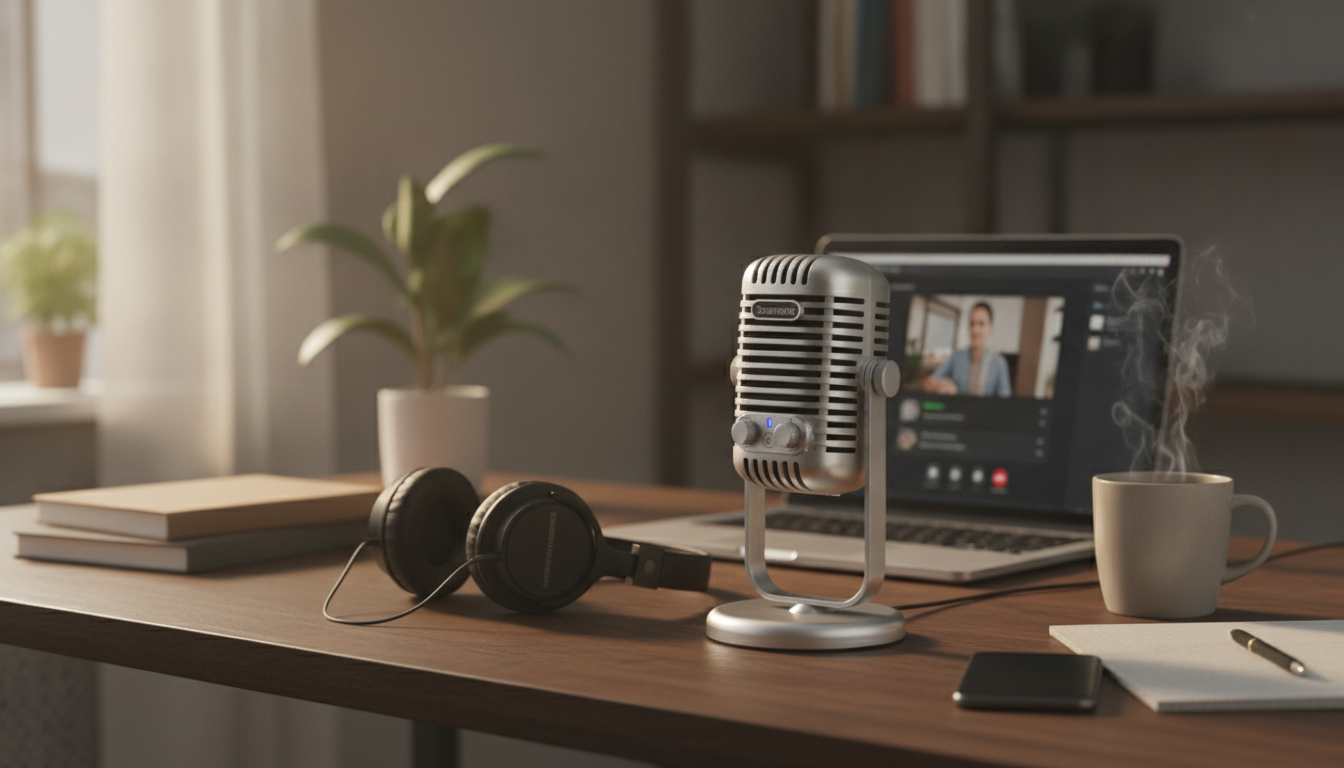
USB Desktop Microphone for Clear Voice in Podcasting, Streaming, Recording, and Online Meetings
A USB desktop microphone can be the simplest upgrade for clearer speech—whether the goal is a cleaner podcast track, more intelligible livestream commentary, better voiceovers, or fewer “can you repeat that?” moments in video calls. The biggest wins come from real-world fundamentals: getting the mic closer to your mouth, reducing room noise, and setting sensible input levels so your voice stays clear without distortion.
What a USB Desktop Microphone Improves Right Away
Most built-in laptop and monitor mics struggle because they’re far from your mouth and surrounded by noise sources (fans, keys, desk reflections). A dedicated USB desktop mic improves clarity quickly, even before any software tweaks.
- Cleaner speech by placing the capsule closer to your mouth and away from keyboard noise.
- More consistent volume for listeners and meeting participants, reducing the need for constant gain changes.
- Simpler setup than XLR interfaces: one USB connection for power and audio, typically recognized automatically by Windows and macOS.
- Better control over tone with basic placement changes (distance and angle) before adding any processing.
Key Features to Look For in Everyday Use
For daily meetings, streaming, and recording, the best features are the ones that help you stay consistent and react fast when your environment changes.
- Pickup pattern: A tighter pattern (often cardioid) keeps focus on your voice and helps reduce room echo and background chatter.
- Monitoring and mute: A quick mute button and headphone monitoring (if included) make meetings and livestreams smoother.
- Gain control: On-mic gain is handy when switching between calm speaking and excited commentary.
- Stand and vibration control: A stable desk stand reduces thumps from typing and desk bumps; a small foam pad under the stand can help further.
- Cable and build: A secure USB connection and sturdy body matter for frequent use, travel, or shared workspaces.
Placement and Room Setup for Clearer Audio
Mic placement is the fastest way to improve sound without buying anything else. Small adjustments often make a bigger difference than heavy software filtering.
Distance, angle, and height
- Distance: Start around 6–10 inches from your mouth. Closer usually adds warmth and clarity, but may increase plosives and breath noise.
- Angle: Aim the mic slightly off-axis (not directly in line with your mouth) to reduce “p” and “b” pops.
- Height: Keep it roughly mouth-level. Speaking over a mic can sound thinner than speaking toward it.
Reduce noise and echo at the source
- Noise sources: Keep the mic away from keyboards, PC fans, and windows. Turning the mic slightly away from the keyboard can reduce key clatter.
- Room echo: Soft furnishings help (curtains, rugs, a couch). For a fast fix, sit closer to soft surfaces and farther from bare walls.
Recommended Settings for Meetings, Streaming, and Recording
Once placement is solid, a few settings keep your voice predictable and comfortable for listeners.
- Input level: Set system input so normal speech sits around the middle of the meter; avoid consistently hitting the red (clipping).
- Noise suppression: Use light suppression for meetings. For recording, reduce suppression to avoid robotic artifacts and prioritize room treatment and mic placement.
- Echo cancellation: Keep it enabled for video calls when using speakers; disable when using headphones and recording locally.
- Sample rate guidance: 48 kHz is common for video and streaming; 44.1 kHz is common for music. Either can sound excellent with correct levels.
- Streaming tip: Add a gentle compressor and limiter in streaming software to keep volume consistent during louder moments.
For step-by-step OS and app checks, see Microsoft Support for Windows input troubleshooting, Apple Support for Mac input settings, and the OBS Studio documentation for audio filters and monitoring.
Quick Comparison: Built-In Mic vs Headset vs USB Desktop Microphone
| Option | Strengths | Trade-offs | Best for |
|---|---|---|---|
| Laptop/monitor mic | Always available, no setup | Roomy sound, inconsistent volume, picks up keyboard | Occasional calls |
| Headset mic | Consistent distance, good noise rejection | Less natural tone, comfort varies | Busy shared spaces, long meetings |
| USB desktop mic | Clearer, fuller voice; flexible placement | Needs desk space; benefits from basic placement care | Podcasting, streaming, frequent meetings |
Product Spotlight: USB Desktop Microphone for Podcasting, Streaming, Recording & Online Meetings
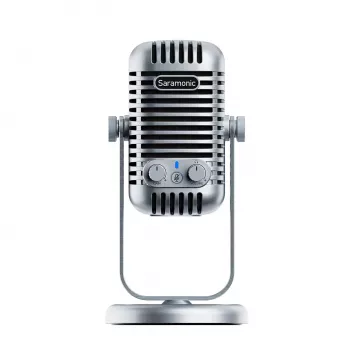
If the goal is a straightforward jump from “acceptable” to “clear,” a dedicated desktop mic is a practical place to start. The USB Desktop Microphone for Podcasting, Streaming, Recording & Online Meetings is built for common voice tasks like calls, livestream commentary, voiceovers, and podcast-style recording.
- Desk-friendly USB setup that keeps your voice closer and more present than most built-in mics.
- A simple upgrade path for home offices, student setups, and creator desks.
- Pairs well with a repeatable routine: steady placement, moderate gain, and light processing only when needed.
Optional add-ons for an on-camera setup
- Vintage Glass Pendant Light with LED Compatibility for Indoor and Outdoor Spaces for a warmer background light or studio corner vibe.
- Liu Jo Women’s Blue Plain Jeans – Spring/Summer Denim for a neat, camera-ready look that still feels casual.
- Only Women’s Blue Organic Cotton Skirt as a comfortable option for long sessions on calls or recordings.
Troubleshooting Common Audio Problems
FAQ
Do USB microphones work with Zoom, Google Meet, and Microsoft Teams?
Yes. Plug the mic in, then select it as the input device in the app’s audio settings and confirm the input level in your operating system’s sound settings.
How far should a desktop microphone be from the mouth for clear speech?
A practical starting range is about 6–10 inches. Keep the mic slightly off-axis to reduce plosives, then adjust closer for more fullness or farther for less breath noise.
Is a USB microphone good enough for podcasting and streaming without extra gear?
Often, yes—placement and correct gain make the biggest difference. Optional upgrades include a pop filter, a small desk isolation pad, and light compression/limiting in software.












Leave a comment